
NB! The video shows the procedure for reconciliation both before and after submitting the VAT return.
At the top of the reconciliation you will find 3 tabs:
- The first tab shows reconciliation for the period.
- The second tab shows a total overview for the year, both booked and submitted VAT.
- The third tab shows account help, where you see which accounts we support in the reconciliation. These accounts can be mapped correctly under "Edit chart of accounts".
Settlement
When the VAT return has been submitted, all 27xx accounts are zeroed out against 2740. To enter input and output VAT, you must scroll down to sales and purchases under VAT return. Open transactions and look for the transaction that zeroes out the account on purchases and sales, and press the "eye". It is an advantage to sort in columns to minimize the selection (e.g. last date in the period, and/or voucher number):


Basic outgoing tax
All posted amounts in the account series 3000-3999 will automatically be entered here. Note that the sale will have a positive sign, while the credit will be shown with a negative sign.
If you have not posted with "pure" accounts, but have posted both with and without VAT on the same account, you can correct this by clicking on the pencil in front of the account.
In the line with the account number like the one you clicked on, you can correct the amount to the correct column:
If you have posted a sale with output VAT that is not linked to a 3xxx account, which causes you to have discrepancies in the reconciliation, you can click the "Add new correction" button:

Here you can enter the account that forms the basis for output VAT.
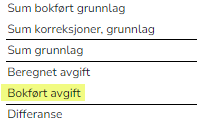
The line "Booked VAT" will automatically be retrieved from the ERP system:
VAT notification
Amounts are currently entered manually, as we have received notification from the Norwegian Tax Administration that they have downgraded the work with the API to collect data from new VAT notifications in the ID port. Sales are entered with a positive sign and purchases with a negative sign.
Manual reconciliation
Here you enter enter date, voucher number and paid/received amount from the Tax Administration.
The balance in "Booked VAT credit/due" comes automatically from account 2740.
Click on "Update balance on settlement account" if the balance on 2740 differs from the balance in the trial balance:
This is done after the reconciliation has been saved, so you must then retrieve the reconciliation for the correct period and enter the numbers there. Remember to press the button "Update balance on settlement account" - NOT the button "Retrieve basis" (see below)
NOTE!
If you update the saved VAT reconciliation AFTER you have submitted the VAT notification from the ERP system, the numbers will update and you will have to reconcile again.
─