
To create a reconciliation form for value added tax (VAT) in Sticos Oversikt.
- Go to the reconciliation module in Sticos Oversikt.
- In the trial balance view, navigate to the VAT settlement account (2740) and tap the account number/name. You will then be navigated to a new page view.
- To create a new form for the current period, select one of the blue boxes named VAT month, VAT term, VAT primary month or VAT primary term based on what you want to reconcile.
At the top of the VAT reconciliation form there are four tabs:
- VAT per periodprovides a detailed reconciliation for the current period.
- VAT total overview presents a complete overview for the year, including both posted and submitted VAT.
- Variance check provides a comprehensive overview of any discrepancies in the reconciliation throughout the year.
- Account helpshows which accounts are supported in the reconciliation. These accounts can be mapped under "edit chart of accounts".
VAT per period
Settlement
In the settlement table you will find an overview of input and output VAT, which is retrieved from the ERP system. The table gives you the opportunity to drill down to both account and transaction level for a more thorough analysis.
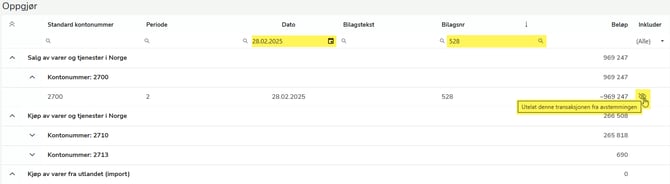
If you have submitted the VAT return and posted it in the accounting system, all 27xx accounts will be settled against account 2740. To view the balances for posted input and output VAT, you must find the transaction that zeros out the accounts for purchases and sales, and click on the "eye" icon. This will exclude the transaction from the reconciliation. It is an advantage to sort and/or filter in columns to minimize the selection (e.g. sort by latest date or highest voucher number. Or search by voucher number):
Basic outgoing tax
All accounts with posted amounts in the account series 3000-3999 will automatically be displayed in the table. Sales will be shown with a positive sign, while credit sales will be shown with a negative sign.
If you have posted with different VAT codes or are using the same account instead of using separate accounts, this can be corrected by clicking on the pencil icon next to the row. This will give you a line with the same account specification as the one you selected, where you can adjust the amounts by entering amounts in the correct column.
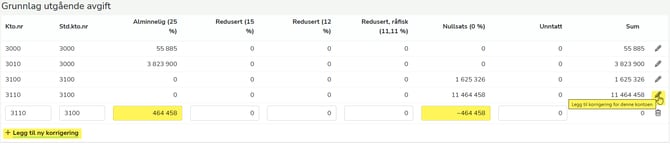
When a sale with output VAT has been posted without being linked to an account in the 3xxx series, you can add the entry manually by clicking the "Add new correction" button. It is important to enter a value between 3000-3999 for "standard account number", otherwise the correction will not be included in the total overview tab.
Calculated tax is calculated based on the basis (booked and corrections) in the table.
Booked tax is retrieved from the Settlement table and the line "Sales of goods and services in Norway.
VAT report
The VAT report can be retrieved from Altinn by clicking "Retrieve from Altinn" at the top of the page. When the numbers are retrieved, they are displayed in gray cells, but they will change color to blue when changes are made. It is also possible to enter the numbers manually. The numbers should be entered without signs.
NOTE!
If you have posted new vouchers or made changes to the ERP system after creating the reconciliation form, you can update the numbers in the form by clicking "Retrieve basis".

If you update the saved VAT reconciliation AFTER you have submitted the VAT return from the ERP system, the figures will update and you will have to reconcile again.
VAT Total overview
The overview has 3 tables, which show overviews from the entire year.
Previous reconciliations show an overview of all booked purchases and sales, divided into the different VAT categories.
VAT return show an overview of submitted VAT returns.
Settlement paid show an overview of payments through year. The form attempts to retrieve the payments automatically and enters the date, voucher number and amount. This can also be entered manually by pressing "Enter manually". Here you can also enter rounding and comments.
Variance check
The variance check checks whether there are discrepancies between:
- Booked VAT (settlement account 2740) and the VAT return.
- Booked VAT (settlement account 2740) and paid / received amount.
- The sum of the 27xx accounts is not equal to 0.
If there are differences, these are marked in pink. In addition, you will receive a deviation message in the top right corner if you have deviations in previous periods/terms of the year, or in the last period of the previous year.
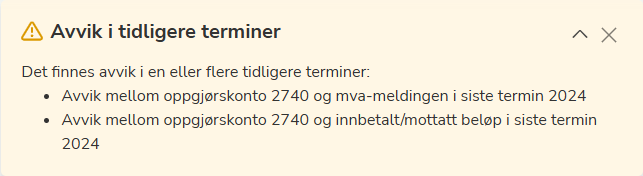
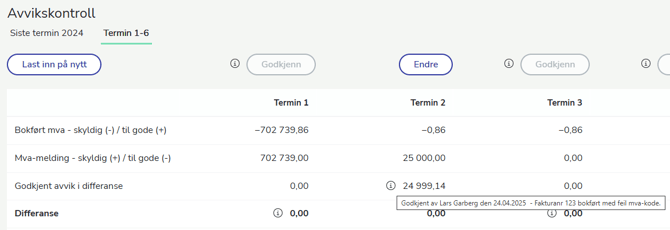
The deviations should be checked and removed in the ERP system. If the deviations are real and should not/can not be removed in the current period, the deviations can be approved with a comment. Approved deviations will be displayed on a separate line in the table, with the name of the approver, date and any comment.
Account help
The account help shows which standard accounts are linked to the various VAT codes that the form uses. If any accounts are missing, or accounts/basis are displayed incorrectly in any of the tables in the form, you can see which standard accounts should be used here. The account mapping can be found by clicking on the customer name in the top right, and selecting Edit Account Plan.
Reconciliation for primary industry
When you are going to reconcile VAT and you have more than 1 settlement account in the balance sheet, you must define which accounts you are going to reconcile. If you have already reconciled, for example, ordinary business, this question will appear:

Here you should answer yes.
This pop-up will then appear:
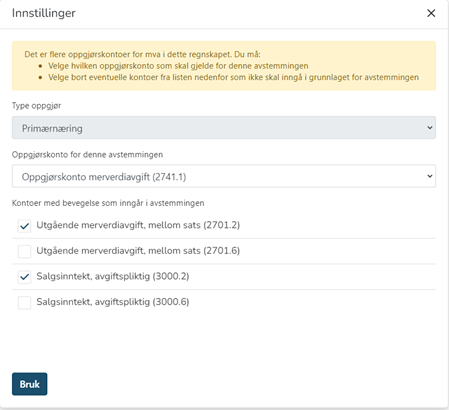
Here it is important that you choose which settlement account the reconciliation should apply to and which turnover accounts should be reconciled. This pop-up will appear when you select both ordinary industry and primary industry. Select the correct settlement account in the drop-down menu. Then you choose which accounts to reconcile. m belongs to the settlement account. If you select a settlement account for primary industry, you must also select the turnover accounts that apply to primary industry.
─